Calculator Vault Apps: How a Vault Disguised as a Calculator Works
How a calculator vault app hides private photos behind a working calculator, how to set one up on Android, and the limits of disguises you should know.
By the Nascentra team · 6 min read
A calculator vault app looks like the most boring thing on your phone. Open it and you get a calculator that actually adds up numbers. Type the right code into it, though, and it opens a private vault with your photos, videos, notes and files inside.
We built a calculator lock into KiWi Vault because people kept telling us the same thing: a padlock icon labelled “Vault” is an invitation. Someone borrows your phone, sees it, and asks what’s in there. A calculator doesn’t get that question. This post explains how the disguise works, how to set one up without locking yourself out, and where the trick stops helping.
What a calculator vault app actually is
There are two separate ideas bundled together here, and it helps to pull them apart.
The first is the vault: a private space inside an app where files are kept away from your gallery, file manager and other apps. If you’re new to the idea, our post on what a vault app is and whether you need one covers the basics.
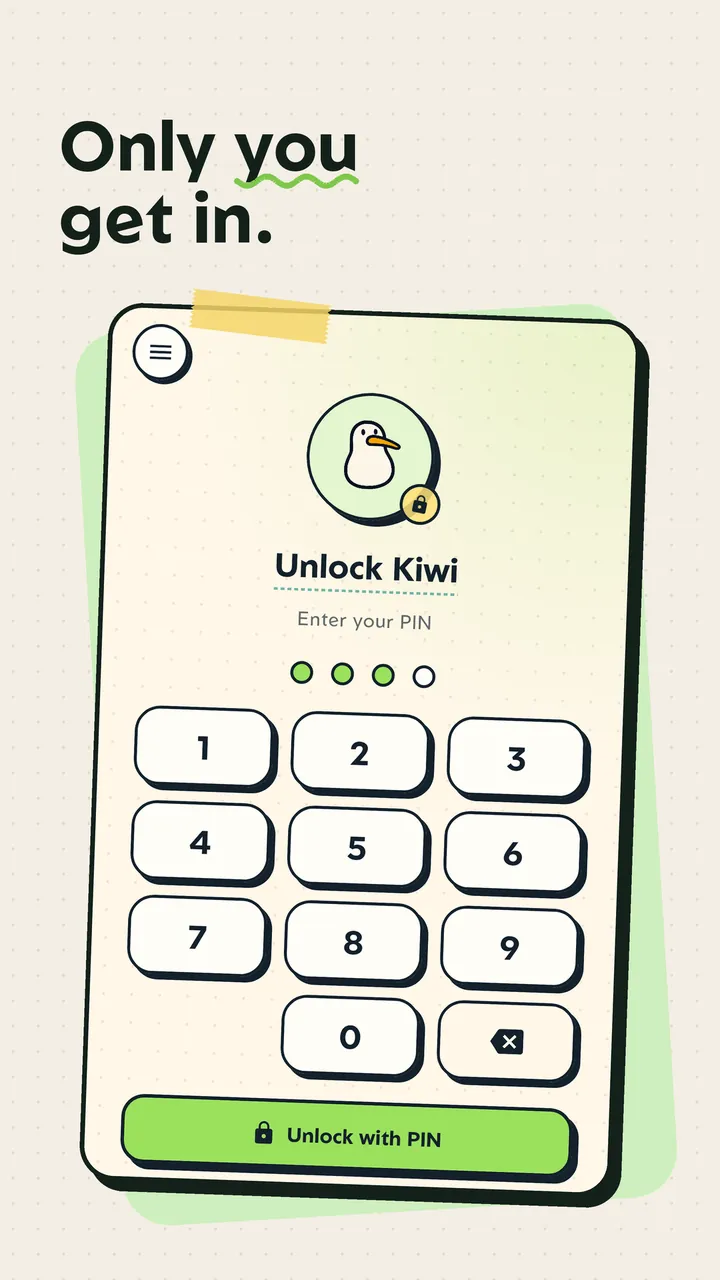
The second is the disguise: the lock screen pretends to be something else. Instead of a PIN pad that says “Enter PIN”, you see a calculator. It works as a calculator, so a curious person who taps a few sums sees normal answers and moves on. Only you know that a particular code, entered through that calculator, opens the vault.
A good calculator disguise has to pass a quick, casual look. That’s the whole job. It isn’t encryption and it isn’t a wall. It’s camouflage.
How the calculator lock works in KiWi Vault
In KiWi Vault, Calculator lock is one of the lock styles you can choose, alongside the standard PIN, password and pattern screens. It’s part of the free app, not Premium. There’s also a Clock lock that does the same thing with a clock face, if a calculator doesn’t fit how you use your phone.
Here’s what happens when the disguise is on:
- The lock screen looks and works like a calculator.
- You enter your vault code through the calculator instead of a normal PIN pad.
- Anyone who opens it without the code just gets a calculator.
- KiWi’s “For You” reminders, which normally nudge you at most once a day about memories in your vault, stay quiet while a Calculator or Clock disguise is on. A notification saying “you hid 12 photos three weeks ago” would give the game away, so we switched that off by design.
If you want to go further, KiWi Vault Premium adds 8 secret app icons, so the icon in your app drawer can look like something other than a vault. That part is Premium; the calculator and clock locks themselves are not.
Setting up a calculator vault on Android
The setup is short, but the order matters. We’ve seen people get the disguise working before they’ve sorted out recovery, and that’s the wrong way round.
- Install KiWi Vault from Google Play and create your main lock (PIN, password or pattern).
- Set up recovery first. KiWi offers security questions and, for Calculator lock, an 8-digit recovery code. Write the recovery code somewhere safe that isn’t the same phone.
- Turn on Calculator lock in KiWi’s settings and enter your code through the calculator a few times to make sure it sticks in your memory.
- Hide a test photo and check it’s in the vault (and gone from your gallery, if you chose to remove the original) before you move anything important.
- Close the app and reopen it the way a stranger would. Does it look like a plain calculator? Good.
- Decide about the icon. If the vault icon is still a giveaway for you, consider the Premium secret icons.
One more thing on the code itself. Pick something you won’t type by accident while doing real sums, and don’t use something obvious like your birth year. Our guide to choosing a PIN, password or pattern you won’t get locked out of goes into this in more detail.
The honest limits of a disguise
Here’s the catch with any calculator vault app, ours included: a disguise reduces attention. It doesn’t make anything invisible.
A few things worth knowing:
- App lists still show the app. On many phones, Settings shows every installed app, and Google Play shows your install history. Someone who goes looking can find KiWi there, depending on your phone and Android version.
- Anyone who knows the trick can guess. Calculator vaults are well known. If someone suspects one, they may start typing codes. A strong code matters more than the disguise.
- The disguise doesn’t fix a compromised phone. If your phone already has spyware on it, or someone has full access to your unlocked device for a long time, no lock screen design will save you.
- It’s a cover, not a lie you should have to defend. If someone is pressuring you to show what’s on your phone, a disguise only goes so far. Our post on the decoy vault covers that situation more directly.
And the one we feel most strongly about: KiWi has no account and no cloud backup. Your hidden files are moved into KiWi’s private storage on your phone, protected by Android’s app sandbox and device encryption, with your credentials stored as hashes rather than plain text. That’s good for privacy, but it means that if you forget your code and your recovery options, or lose the phone, the files are gone. We can’t get them back because we never had them.
Who a calculator disguise suits (and who it doesn’t)
A calculator disguise makes the most sense when the main risk is casual curiosity:
- Family members who pick up your phone to play a game or look at photos.
- Friends scrolling your home screen while you’re showing them something.
- Shared tablets where several people tap around.
- Situations where you’d rather not explain why you have a vault app at all.
It’s less useful when the person you’re worried about is technical, determined, or already knows exactly which apps you have installed. In that case, put your effort into a strong code, a locked phone, and keeping the phone itself out of their hands. A disguise layered on top is still fine, but don’t lean on it.
It’s also worth asking whether you need a disguise at all. Plenty of people are happy with a normal-looking KiWi lock screen. The vault still keeps photos out of the gallery either way. The calculator just adds a layer of “nothing to see here”.
Small habits that keep the calculator vault convincing
The disguise only holds up if the way you use your phone matches it. A few habits we’d suggest:
- Don’t leave the vault open. Close it when you’re done, so whoever picks up the phone next sees a calculator, not your files.
- Move the app somewhere ordinary. A calculator sitting next to other utilities looks normal. A calculator alone in a folder called “Private” doesn’t.
- Keep the code to yourself. Don’t type it while someone is watching over your shoulder. A calculator that suddenly opens a photo gallery is a memorable sight.
- Watch what you share. If you send someone a hidden photo, it now lives on their phone too, outside your vault.
- Check your recovery option every so often. KiWi shows an occasional in-app reminder asking whether you still remember it. Take that seriously.
Where KiWi Vault fits
We made KiWi for people who want their private photos, videos and notes kept on their own phone, behind a lock they control, without signing up for anything. The calculator and clock locks are there because hiding the vault itself is often half the point. Everything stays offline: no account, no servers of ours, no ads.
If you want the bigger picture before installing, the How it works page walks through hiding, unlocking and recovery step by step, and the KiWi Vault page lists what’s free and what’s in Premium. Try the calculator lock on a few test photos first, get your recovery code written down, and then decide whether it suits the way you use your phone.