How to Hide Photos on Android Without Anyone Knowing
Want to hide photos on Android so they don't show in your gallery? Compare built-in options and vault apps, follow clear steps, and avoid the common leaks.
By the Nascentra team · 6 min read
If you want to hide photos on Android, you’ve got more options than you might think, and a few of them don’t do what they sound like. Some only tuck pictures out of one view. Others move them somewhere genuinely private. And almost all of them have a gap or two that can let a photo slip back into sight.
We build a photo vault, so we’ve tested a lot of these paths on our own phones. Below we compare the main ways to keep private pictures out of your gallery, walk through the steps, and point out the leaks people usually miss.
First, decide what “hidden” means for you
Before picking a method, it helps to be clear about who you’re hiding from. The right answer changes a lot.
- Casual glances. A friend swiping through your gallery, a kid playing on your phone. You want photos out of the main grid.
- Curious people who know your phone. A partner or family member who might go looking. You want photos behind a separate lock.
- People who might pressure you to open things. You may want a disguise or a decoy so that a vault isn’t obvious.
Most people sit in the first two groups. Keep yours in mind as you read; the “best” method is the one that matches it.
Ways to hide photos on Android, compared
The gallery’s archive or hide option
Some gallery apps let you archive or hide a picture so it leaves the main view. It’s quick, but it’s usually not locked. Anyone who opens the archive or the hidden album can see everything. Fine for decluttering, weak for privacy.
A locked folder or secure folder
Depending on your phone and Android version, you may have a built-in locked area: a locked folder in your photos app, a manufacturer’s secure folder, or Android’s private space. These add a real lock and are worth a look. They vary a lot between brands, and some are photo-only. If you’re weighing these against a dedicated app, we compared them in detail in KiWi Vault vs Locked Folder and Private Space.
The “.nomedia” trick
On many Android phones, putting an empty file called .nomedia in a folder tells media apps to skip it. The photos are still there, just unlisted. There’s no lock at all, a file manager will show them, and some apps ignore the file. We’d treat this as tidying, not hiding.
A vault app
A vault app moves photos out of shared storage and into its own private storage, behind a PIN, password, pattern or fingerprint. Good ones also cover videos, documents and notes, and offer extras like a disguise. This is the most thorough option, with one big responsibility attached: if the vault is offline, you’re in charge of backups.
How to hide photos with a vault app, step by step
Here’s the process in KiWi Vault. Other vaults will be similar in shape.
- Install and set your lock. Choose a PIN, password or pattern. You can add fingerprint or face unlock later.
- Set up recovery straight away. Pick security questions, or note your 8-digit recovery code if you use the Calculator lock. Don’t skip this. There’s no account, so this is your only way back in.
- Open Photos in the vault and tap to add. Pick the pictures you want to hide.
- Grant storage access when asked. On newer Android versions, the app needs all-files access so it can remove the originals from your gallery. Without it, you’d end up with a hidden copy and a visible original.
- Choose to delete the originals. KiWi copies the photo into its private storage first. Then you decide whether to remove the original from shared storage. If you want the photo gone from your gallery, say yes.
- Check your gallery. Open your usual gallery app and confirm the photos have disappeared.
- Optional: share straight into the vault. From another app, use Android’s share menu and pick KiWi to send a photo directly in.
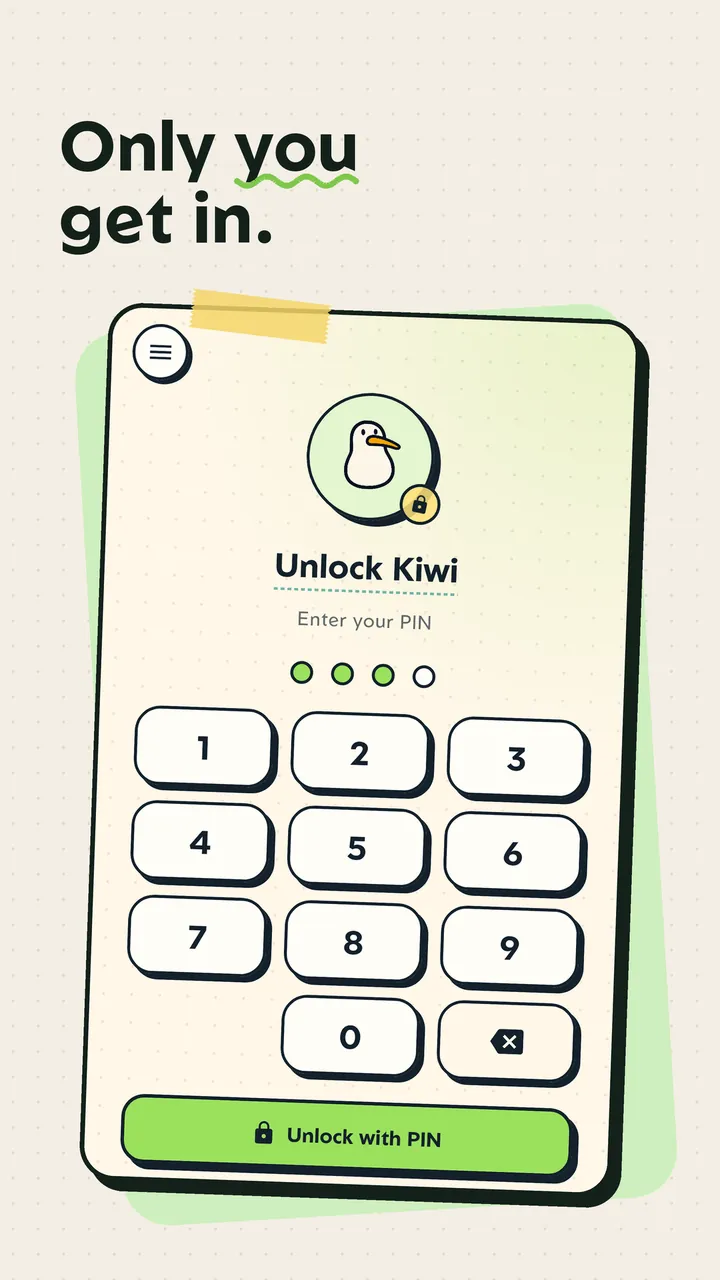
To get a photo back out, unhide it inside the vault. KiWi restores a copy to your phone’s normal storage.
The leaks most people miss
This is where most “I hid it but someone still saw it” stories come from. Run through this list after you’ve hidden anything important.
Cloud backup copies
If your photos app backs up to the cloud, a picture may already be on the server before you hide it. Removing it from your phone doesn’t necessarily remove the cloud copy. Open your cloud photo service and check. We learned to look here first, because it’s the leak that hurts most.
Messaging app duplicates
Many messaging apps save received photos into their own folders. Hiding one copy leaves the other sitting there. Search your gallery’s folder view for duplicates, and consider turning off auto-save to gallery in those apps.
Screenshots and edited versions
If you screenshotted or edited a photo, there may be a second file. Same goes for “burst” shots and motion photos on some phones.
Recently deleted bins
When a vault removes the original, your gallery may still keep it in its own trash for a while, depending on the app. Empty it if you want the photo truly off your gallery.
Shared albums and smart features
Shared albums, slideshows and auto-generated “memories” can pick up a photo before you hide it. Check anything you’ve shared with others.
Honest limits to keep in mind
We’d be doing you a disservice if we skipped this part.
- A vault keeps photos on your phone, not in the cloud. KiWi has no cloud backup. If you lose or reset the phone, uninstall the app, or forget your code and your recovery options, those photos are gone. Keep a separate backup of anything you can’t replace.
- It doesn’t protect a compromised phone. If someone already has spyware on your device, or watches you type your code, a vault won’t stop them.
- Disguises lower attention. A calculator icon is less interesting than an app called “Hidden Photos,” but someone determined can still find it in your app list.
- Your phone lock still matters. A strong screen lock is the first wall. The vault is the second.
Going further with KiWi Vault
If the simple steps above cover you, great. If you’re in the “people might push me to open things” group, a couple of extra features help.
The decoy vault lets you set a second code that opens an empty-looking vault, so your real photos stay out of view even if you have to unlock something. We cover when that’s useful in our post on using a decoy vault. The Calculator and Clock locks make the vault look like an everyday tool on your home screen. Both are in the free version, along with hiding up to 275 photos, search, and a 30-day Recently Deleted bin.
Premium adds unlimited hiding, Intruder Selfie (a photo of whoever enters a wrong code, saved inside your vault), and a Secret Camera that saves new photos straight into the vault, so they never touch your gallery at all. Videos follow much the same steps as photos, with a few extra things to watch out for; our guide on how to hide videos on Android covers them.
You can read the full feature list on our vault app’s page, or download KiWi Vault from Google Play and try the free version with a handful of photos first. Hide a few, check your gallery and your cloud, and see how it feels before you move everything in.