Offline Photo Vault vs Cloud Lockers: Where Private Photos Live
Offline photo vault or cloud locker? An honest look at the trade-offs for private photos: backup, access, exposure, and how to pick what fits your life.
By the Nascentra team · 6 min read
Every private photo you keep has to live somewhere. For most people the choice comes down to two models: an offline photo vault that keeps pictures on the phone itself, or a cloud locker that stores them on a company’s servers and syncs them to your devices. We build an offline vault, so you’d expect us to tell you offline always wins. It doesn’t. Both models solve real problems, and both have a weak spot you should know about before you trust them with anything that matters.
This post is the honest comparison we’d want to read ourselves.
Two models, one question
Strip away the branding and every private photo storage option answers one question: who holds a copy?
With a cloud locker, the answer is “you and the provider.” Your photos are uploaded, stored on servers you don’t control, and synced back to whichever devices you sign in on. The provider’s security, policies and account system become part of your privacy setup.
With an offline vault, the answer is “only this phone.” The photos sit in the app’s private storage on your device. Nobody else has a copy, which is the whole appeal. It’s also the whole risk.
Neither answer is wrong. They’re different bets.
What cloud lockers genuinely do well
We want to be fair here, because cloud storage earns its popularity.
Backup that survives your phone. Drop your phone in a lake and your cloud photos are still there. For a lot of people this alone settles the question, and honestly, for irreplaceable family photos it’s a strong argument.
Access across devices. Take a photo on your phone, view it on a tablet or laptop later. If you switch phones often or share a life across several screens, that convenience is real.
Recovery when you forget things. Most cloud services let you reset a password through email or a phone number. Forget your code and you’re usually locked out for an afternoon, not forever.
Someone else handles the infrastructure. Large providers have security teams, redundancy and monitoring that no individual can match.
If those four things are what you care about most, a reputable cloud service with strong account security (a unique password and two-step verification) may be the right home for your photos.
Where an offline photo vault makes more sense
The case for keeping private photos offline isn’t about distrust of any particular company. It’s about exposure.
Anything stored online can be reached online. Accounts get phished. Passwords get reused and leaked from other sites. Shared family accounts quietly sync photos to a tablet in the living room. Settings change, and a folder you thought was private turns out to be backing up somewhere you didn’t expect. None of these require the provider to do anything wrong. They just require your account to be the weak link, and it often is.
An offline vault removes that whole category. There’s no account to phish, no sync to misconfigure and no server holding a copy. If someone wants your hidden photos, they need your physical phone and your vault code.
Offline also tends to suit people who:
- Want certain photos kept off shared or family cloud accounts
- Don’t want private images sitting on any company’s servers, even encrypted ones
- Mostly look at these photos on one phone anyway
- Prefer fewer accounts and fewer passwords to manage
If you’re still working out whether you need a vault at all, our post on what a vault app is and who needs one is a good starting point.
The catch: no backup means you’re the backup
Here’s the part we insist on saying clearly, because it’s where offline vaults hurt people.
KiWi Vault has no cloud backup. We switched off Android’s automatic app backup for it on purpose, we don’t run servers, and there’s no account. That means if you lose your phone, break it, factory reset it, uninstall the app, or forget your code and every recovery option, the photos inside can be gone for good. We can’t get them back, because we never had them.
That’s the honest price of “only this phone has a copy.”
So if a photo is truly irreplaceable, keep your own copy somewhere you control. A few ways people handle it:
- Keep an external copy. Copy the photos you can’t lose to a computer or a USB drive you keep somewhere safe, before or after hiding them.
- Separate “private” from “precious”. Plenty of private photos aren’t precious, and plenty of precious photos aren’t private. Only the overlap needs special care.
- Set up recovery the day you install. Security questions and, for the Calculator lock, an 8-digit recovery code. Write the code down and store it away from your phone.
- Check your backup now and then. A backup you’ve never looked at is a hope, not a backup.
- Before switching phones, unhide what you want to move. Unhiding restores a copy to normal storage so you can transfer it the usual way.
It’s a bit more work than a cloud locker. That’s the trade.
What “offline” protects, and what it doesn’t
Being offline-first doesn’t make a vault magic, so let’s be specific about what KiWi actually does.
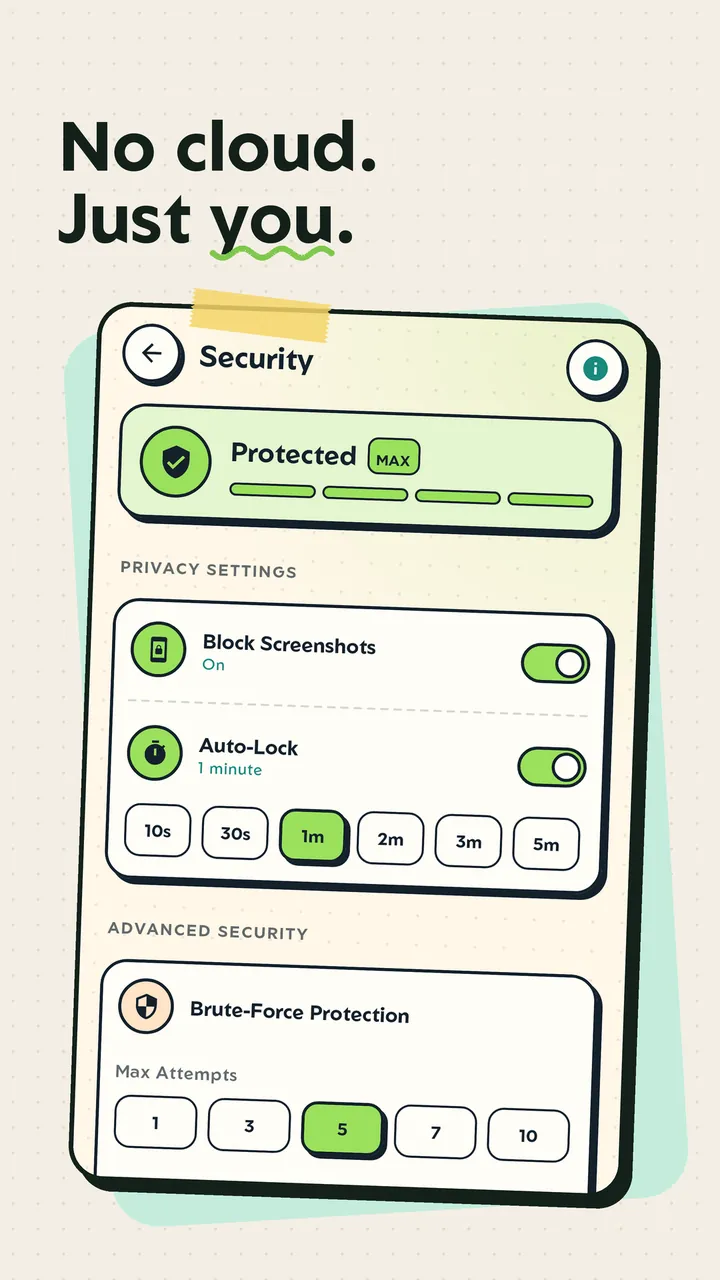
When you hide a photo, it’s copied into KiWi’s private app storage, and you can choose to remove the original from your gallery. That storage is protected by Android’s app sandbox and your phone’s device encryption. Your PIN, password or pattern is never stored as-is; it’s kept as a salted cryptographic hash. Security settings are encrypted with a key held in the Android Keystore. We don’t claim every file is individually encrypted, because that wouldn’t be accurate.
What an offline vault won’t do:
- Protect a phone that’s already compromised by malware or someone with full control of the device
- Save you from a lost phone if you didn’t keep your own copies
- Stop someone who watches you type your code
What it does well is keep private photos out of the gallery, off shared accounts and off the internet, behind a lock only you know. For the everyday “someone picked up my phone” situation, that covers a lot. Our guide to hiding photos on Android walks through the practical side.
How to choose: a quick decision guide
Ask yourself these, in order:
- Would losing these photos be a disaster? If yes and you won’t keep your own backup, the cloud is safer for you. If you will keep a backup, either works.
- Who else can reach your cloud account? Shared family plans, old devices still signed in and reused passwords all count.
- Do you need these photos on more than one device? If so, cloud wins on convenience.
- Is the main worry someone picking up your phone? Then a local vault with a lock and a disguise addresses that directly.
Lots of people end up doing both: everyday photos go to the cloud, and a small set of private ones live in an offline photo vault with a separate backup kept somewhere safe. That’s a perfectly sensible setup. If you’re weighing Android’s built-in options too, we compared them in KiWi Vault vs Locked Folder and Private Space.
Where KiWi fits
We built our vault app for the offline side of that decision. There are no accounts, no ads and no analytics tools inside it, and nothing you hide is uploaded anywhere. The free version lets you hide up to 275 photos and 50 videos, alongside notes and files, with PIN, password, pattern or fingerprint/face unlock, a decoy vault and a Calculator or Clock disguise. Premium adds unlimited hiding and extras like Intruder Selfie and Auto-Lock.
If you want to see the details first, how KiWi Vault works covers storage and locks in more depth. When you’re ready, you can get KiWi Vault on Google Play.
Just remember the deal you’re making with any offline vault: you get privacy because nobody else holds a copy. Keep your own copy of anything you can’t afford to lose, and you get the best of both.