App Lock PIN, Password or Pattern? Set Up a Vault You Won't Get Locked Out Of
Choosing an app lock PIN, password or pattern for your vault, plus how to set up recovery before you need it, because no company can reset it for you.
By the Nascentra team · 7 min read
Most people pick an app lock PIN in about four seconds, usually their birthday or the same four digits they use for everything else. Then, a few months later, they either realise their partner can guess it or they can’t remember which variation they used. We’ve read a lot of support emails that start with “I changed my code and now…” so this post is our honest advice on picking a lock you’ll actually remember, and on setting up recovery while it’s still easy.
One thing up front, because it shapes everything below: there’s no account in KiWi Vault and no cloud copy of your vault. We don’t have your code, we can’t see it, and we can’t reset it. That’s the point of an offline vault, and it’s also why the setup matters.
PIN, password or pattern: what each is good at
All three work in KiWi, and none of them is “the secure one” by default. What matters is how hard it is for the people around you to guess or watch, and how easy it is for you to recall under pressure.
PIN
A PIN is fast and familiar. The catch is that short PINs are easy to shoulder-surf and easy to guess if you reuse obvious numbers. If you go with a PIN:
- Use six digits or more rather than four if you can.
- Avoid birthdays, anniversaries, years, phone number fragments and patterns like 1212 or 2580 (the straight line down the middle of a keypad).
- Don’t reuse your phone’s unlock PIN. If someone already knows that one, they’ve got both.
Password
A password gives you the most room. A short phrase of three or four unrelated words is usually easier to remember than a jumble of symbols, and much harder to guess than a four-digit code. The trade-off is speed: typing a passphrase every time you open the vault gets old, which is where biometrics come in (more on that below).
Pattern
Patterns are quick and feel natural, but they have a known weakness: they leave smudges on the screen and they’re easy to read over someone’s shoulder. If you like patterns, make yours longer than five dots, include a change of direction or two, and avoid starting in a corner, since that’s where most people start.
Our rough rule: if you open the vault often in public, lean towards a longer PIN or password. If you mostly open it at home, a decent pattern is fine.
Your app lock PIN and biometrics work together
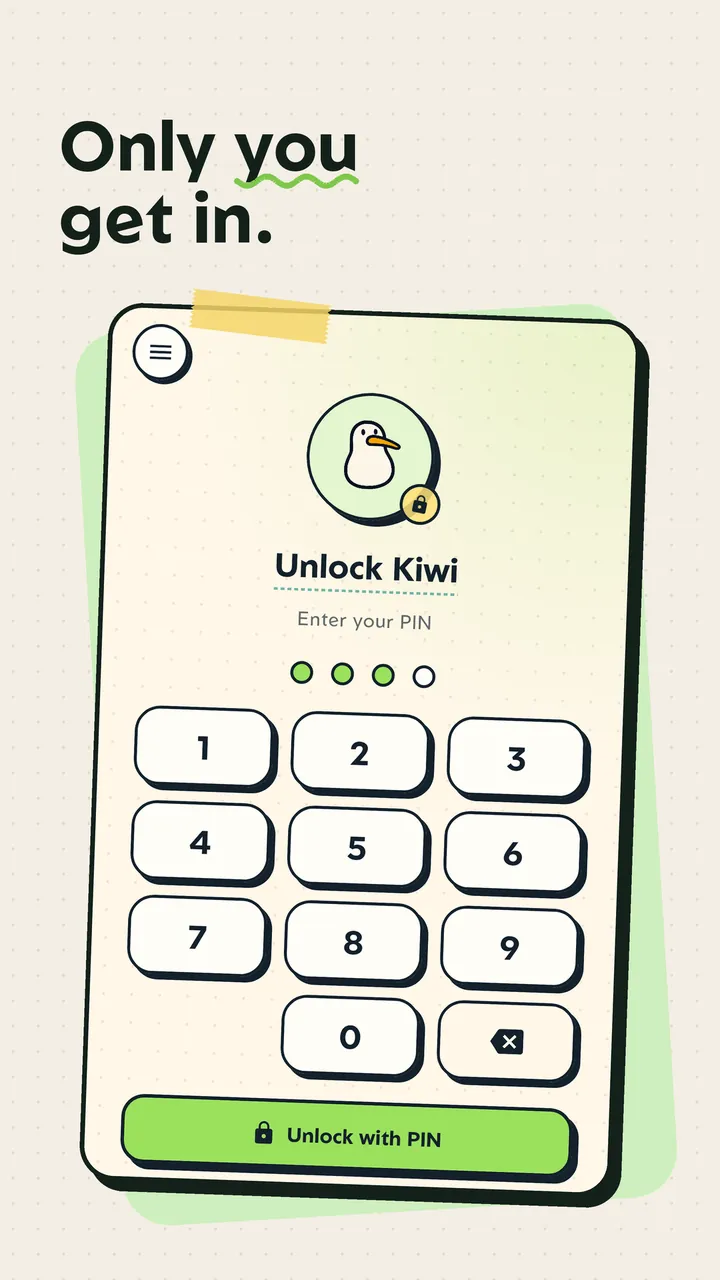
Fingerprint or face unlock is genuinely convenient, and KiWi supports it through Android’s own biometric prompt. Your fingerprint data stays in your phone’s secure hardware. The app never sees it and neither do we.
Here’s the part people miss: biometrics sit on top of your PIN, password or pattern. They don’t replace it. If the sensor won’t read a damp finger, your phone’s biometric settings change, or you’re using a disguise screen where you enter the code directly, you’ll still need to type the real thing. We’ve seen people use fingerprint for months, never type their code, and then draw a complete blank on the day it’s needed.
So if you turn on biometrics, make a habit of entering your code manually every week or two. It takes five seconds and it keeps the memory fresh.
Set up vault recovery before you need it
Since we can’t reset anything, KiWi gives you recovery options that live on your phone:
- Security questions. Pick questions whose answers you’ll know for years but that the people close to you can’t easily guess. “Your first pet” is weak if your sibling is the one you’re hiding things from. You can treat the answer like a second password: it doesn’t have to be literally true, it just has to be memorable to you.
- An 8-digit recovery code for the Calculator lock. If you use the calculator disguise, write this code down somewhere safe that isn’t your phone, such as a paper note in a place only you use or a password manager on another device.
KiWi will also check in now and then (about twice a month) to ask whether you still remember your recovery option. Please don’t swipe that away on autopilot. If the honest answer is “not really”, change it right then.
A quick setup checklist:
- Choose your main lock (PIN, password or pattern) and type it a few times to lock it into memory.
- Set your security questions with answers only you would give.
- If you’re using the Calculator lock, store the 8-digit recovery code outside the phone.
- Turn on fingerprint or face unlock if you want it.
- Put a reminder in your calendar to type your code manually once a week for the first month.
If you’re thinking about a disguise, our post on how a calculator vault app works explains how entering your code through a working calculator feels in practice.
Forgot your vault password? What happens next
If you forget your code, your recovery options are your way back in. If you’ve also lost or forgotten those, there’s no back door. No email reset, no support ticket that can open it, because there’s no server holding a copy. That’s also true if you uninstall the app, clear its data, reset the phone, or lose it: the vault’s contents live in KiWi’s private storage on that device and aren’t backed up by Google or by us. We explain the reasoning in our piece on the offline photo vault approach.
We know that sounds harsh. It’s the same property that means nobody else can get in either. The practical answer is to keep copies of anything truly irreplaceable somewhere else you trust, and to treat recovery setup as part of installing the app, not an afterthought.
How lockouts and Self-Destruct interact with a forgotten code
Two Premium features are worth understanding before you switch them on, because they change what “I’ll figure it out later” means.
Brute Force Shield and lockout settings
With KiWi Vault Premium you can set attempt limits and lockout settings, so someone can’t sit there trying codes all afternoon. Combined with Intruder Selfie (also Premium), a wrong PIN, password or pattern can also quietly take a front-camera photo that’s saved inside the vault with the time and method tried.
The flip side: those limits apply to you too. If you’re unsure of your code, slow down. Don’t machine-gun guesses. Use your recovery option instead of burning attempts.
Self-Destruct Timer
This one is powerful and permanent, so we’ll be precise. You choose a length of time. If the vault stays unopened for longer than that, its contents are wiped the next time it’s unlocked with your PIN, password or pattern. Unlocking with fingerprint or face doesn’t trigger the wipe. Your locks themselves stay in place; it’s the hidden contents that go, and there’s no undo.
Think about how that combines with a forgotten code. If you can’t get in for a while and the timer passes, then when you do finally get back in with your code, the vault will be empty. So:
- Only turn on Self-Destruct if your recovery is solid and you open the vault regularly.
- Pick a timer comfortably longer than your longest normal gap (holidays, a phone left in a drawer).
- Don’t enable it on a whim to “test” it with anything you care about.
If what you really want is protection when someone pressures you to open the app, a decoy vault is often the gentler tool: a second code opens an empty-looking vault while your real one stays hidden.
A lock you’ll remember is the one that protects you
None of this makes a phone invincible. A vault won’t protect a phone that’s already compromised, and a disguise reduces attention rather than making the app invisible. What a good lock does is keep everyday snooping out, and what good recovery does is keep you from locking yourself out.
That balance is what we aimed for when we built KiWi Vault: PIN, password, pattern and biometric unlock, security questions and a recovery code, a decoy vault and Calculator or Clock disguises in the free version, with the stricter lockout and Self-Destruct options in Premium for people who want them. You can read more about the setup on our vault app’s page, or grab it from Google Play and spend two extra minutes on recovery when you first open it. Future you will be grateful.